Exact pin, or address search
Paste a Google Maps link and guests get “Open Direct Location”. Type only the address and they get “Search on Google Maps”.
Google Maps on every function
Add a Google Maps link to each function — Haldi at home, Sangeet at the banquet hall, pheras at the farmhouse — and guests tap once to start navigating. No address to copy, no call asking for directions.
Guests don't get lost because they're careless. They get lost because an address isn't a destination.
An address inside an image or PDF can't be tapped. Guests copy it into Maps letter by letter — or give up and call you.
Search a venue's name and Maps may offer three similar results across the city. Guests pick one and hope.
Farmhouses, hotels and lawns often have a service entrance, a VIP gate and a guest gate — an address can't say which.
Mehendi at home, Sangeet at a banquet hall, wedding at a resort — one address on a card covers one of them.
Two ways to add a venue — and both end in Google Maps on the guest's phone.
Paste a Google Maps link and guests get “Open Direct Location”. Type only the address and they get “Search on Google Maps”.
Every function has its own venue name, address and Maps link — no single address for the whole wedding.
Google Maps takes over from wherever the guest is.
Switch on “at home” and add your house address and pin.
Family numbers sit right below the functions.
Works the same in the Google Maps app on Android and iPhone.
Search the venue in Google Maps. For a big property, long-press the exact gate guests should use to drop a pin there.
Long-press the gate
Open the place or the dropped pin and tap Share.
Share
Choose Copy link (or Copy). You'll get a short Google Maps address.
maps.app.goo.gl/…
In the invitation maker, paste it into that function's Google Maps link field. Repeat for each venue.
Google Maps link: maps.app.goo.gl/…
Small details that decide whether guests arrive relaxed or ring the family from the roadside.
Google often drops a venue's pin at the centre of the property. Long-press the gate guests should use and share that spot.
For hotels with several ballrooms or lawns, write the hall's name in the venue field — the map gets guests to the hotel, the name gets them to you.
For Haldi or Mehendi at home, switch on “at home”, write the block or tower and floor, and drop a pin at your gate.
If there's valet, a separate parking gate or no parking at all, say so in the address — drivers will thank you.
If two functions share a venue, paste the same link in both. Each function still keeps its own date and time.
Open your preview on your phone and tap each directions button once. If one lands wrong, re-copy that pin.
Home, banquet hall and hotel across three days — each function sends guests to its own place.
Guests in an unfamiliar city get from the airport or hotel to each venue without asking around.
Unnamed lanes and highway turns are where an exact pin earns its keep.
Elders can forward the link to their driver, who taps the directions button for each venue.
Pick the look — the location feature comes with all six.

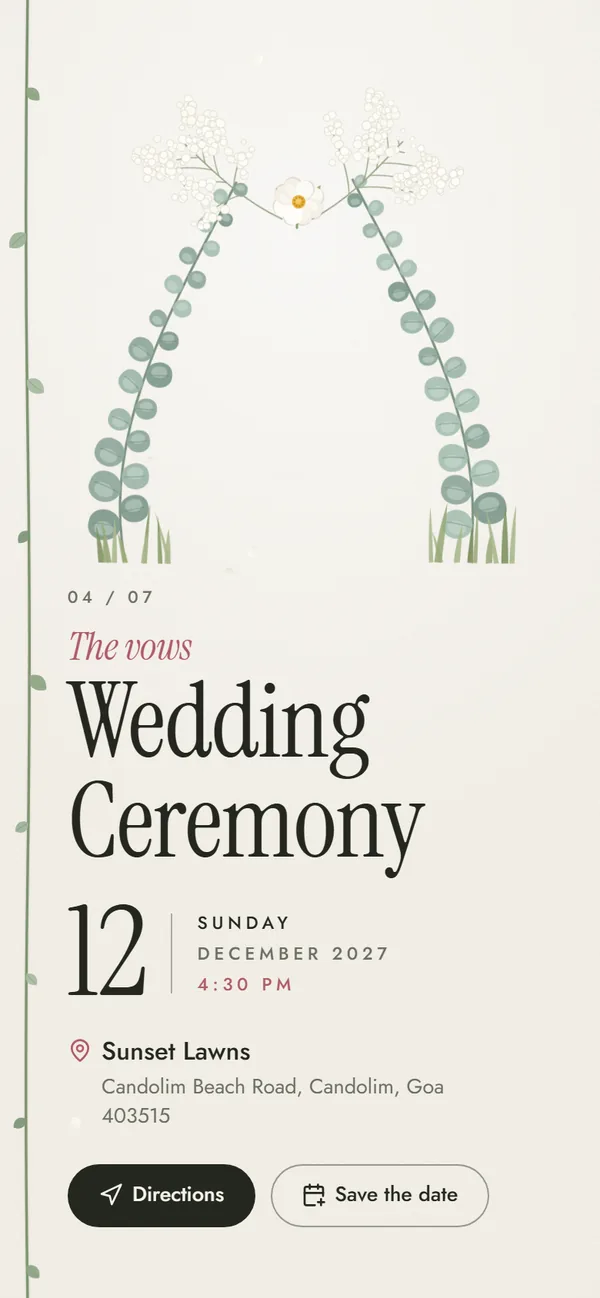
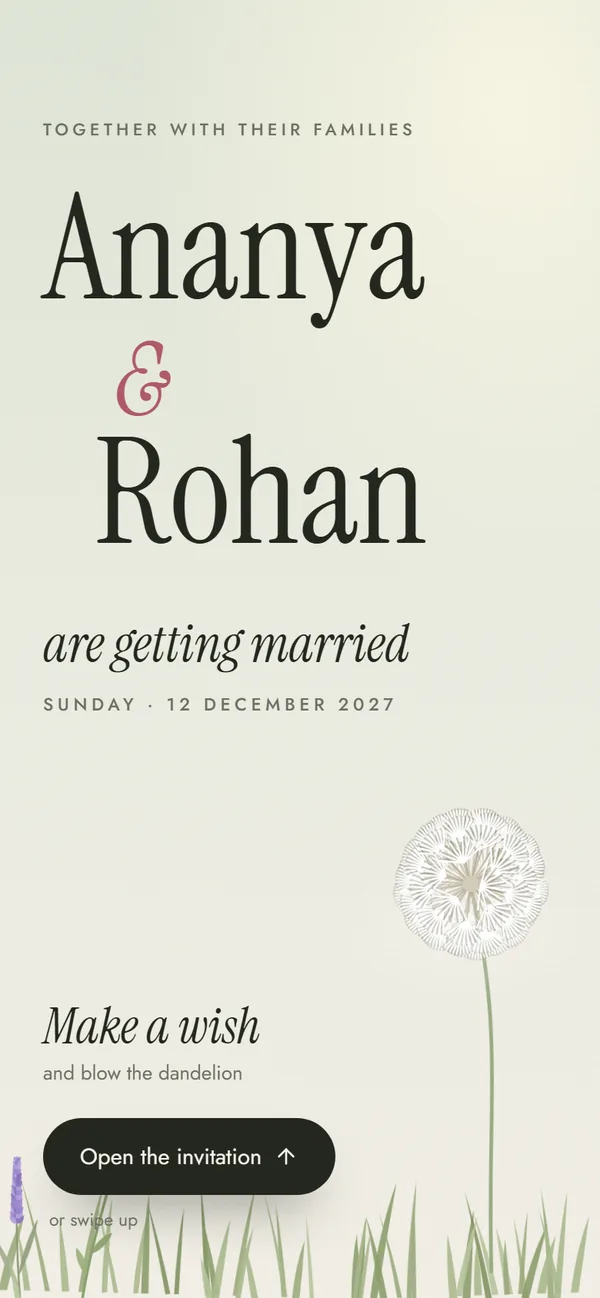
Make a wish on a dandelion, then watch a garden grow — editorial type, no religious text, an hour of the day for every function.
Functions included
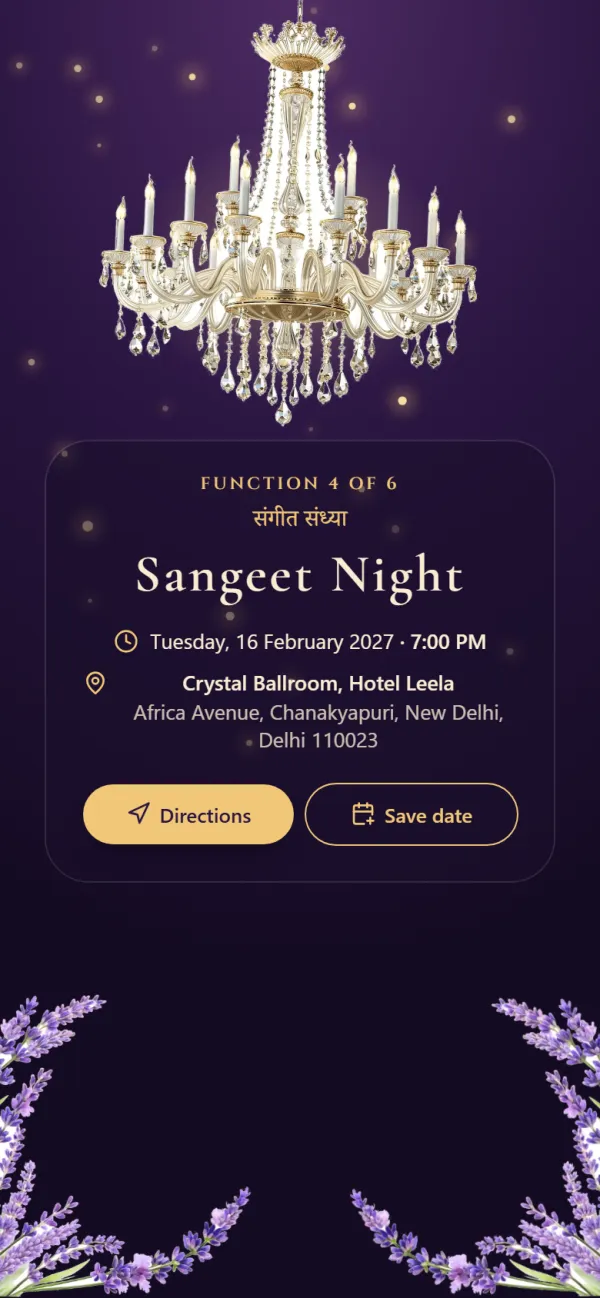
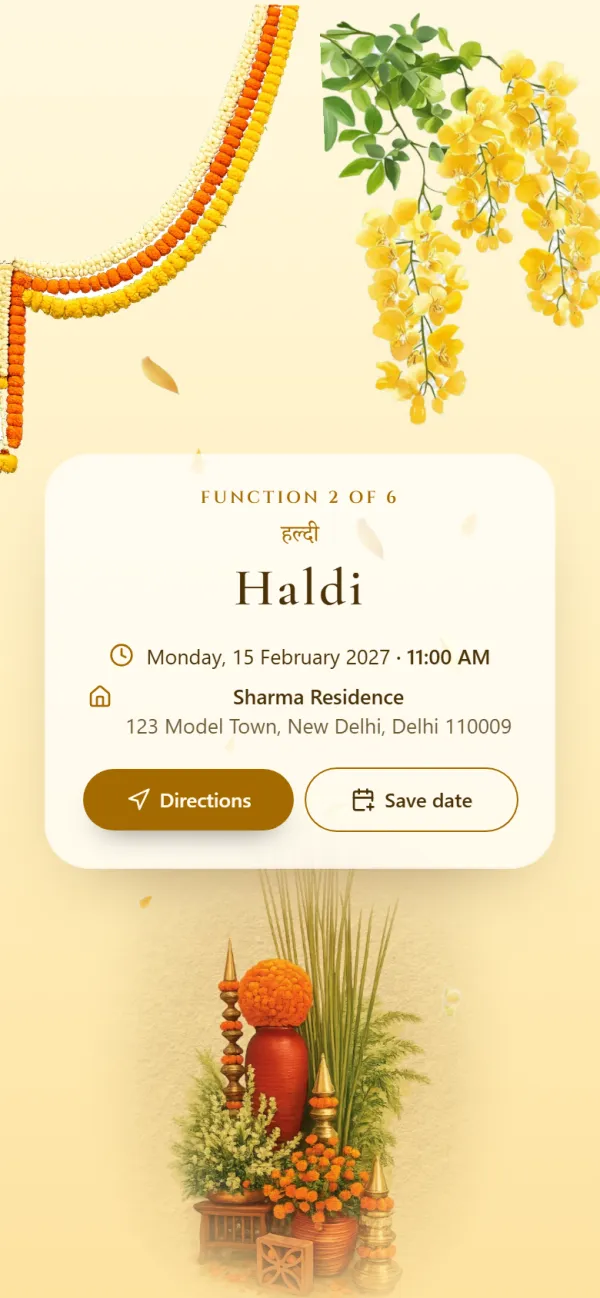
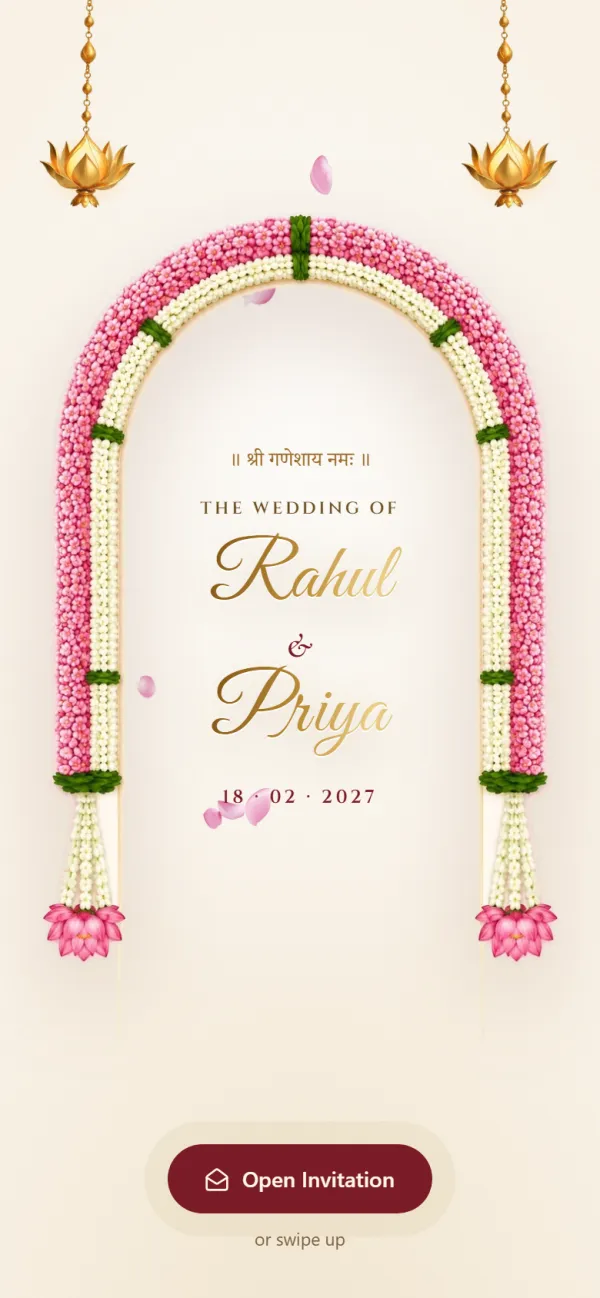
Opens with Shree Ganeshaya Namah and lists every function from Haldi to the reception.
Functions included


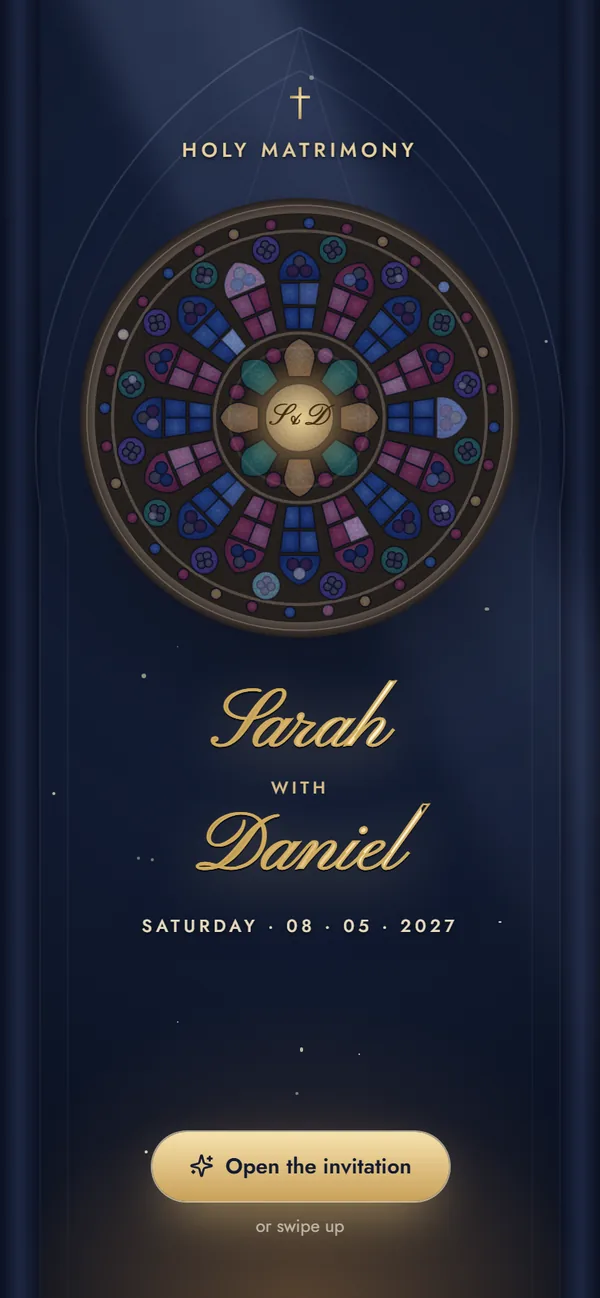
A stained-glass rose window lights up over your names — engagement, Roce, Holy Matrimony and reception.
Functions included
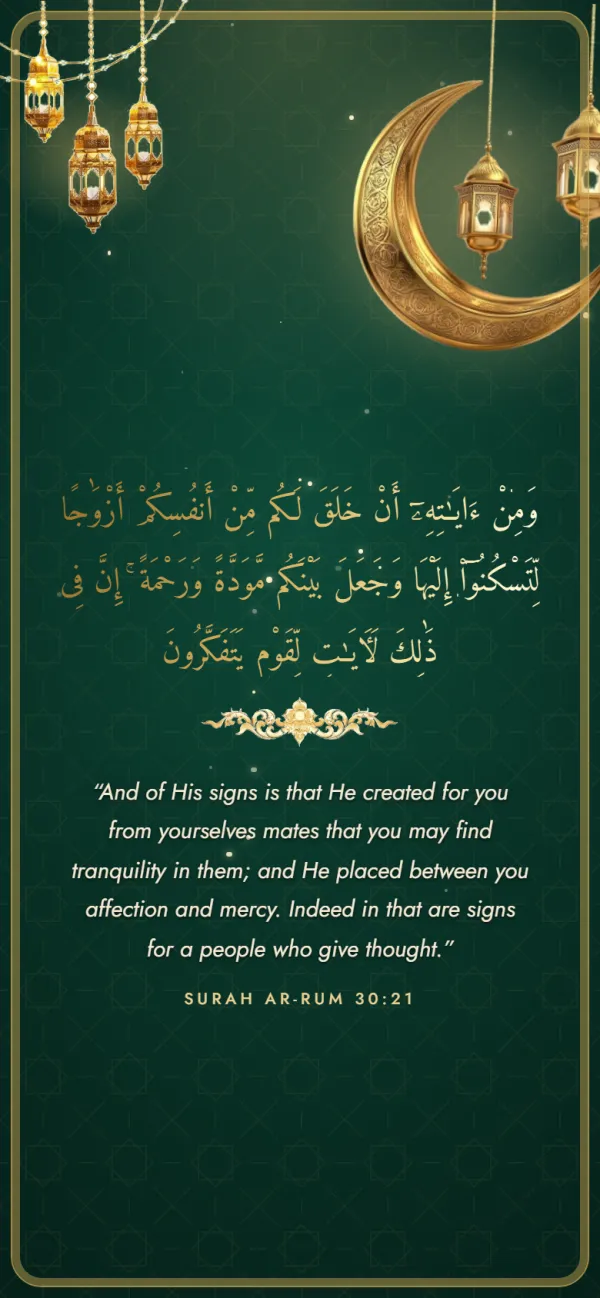
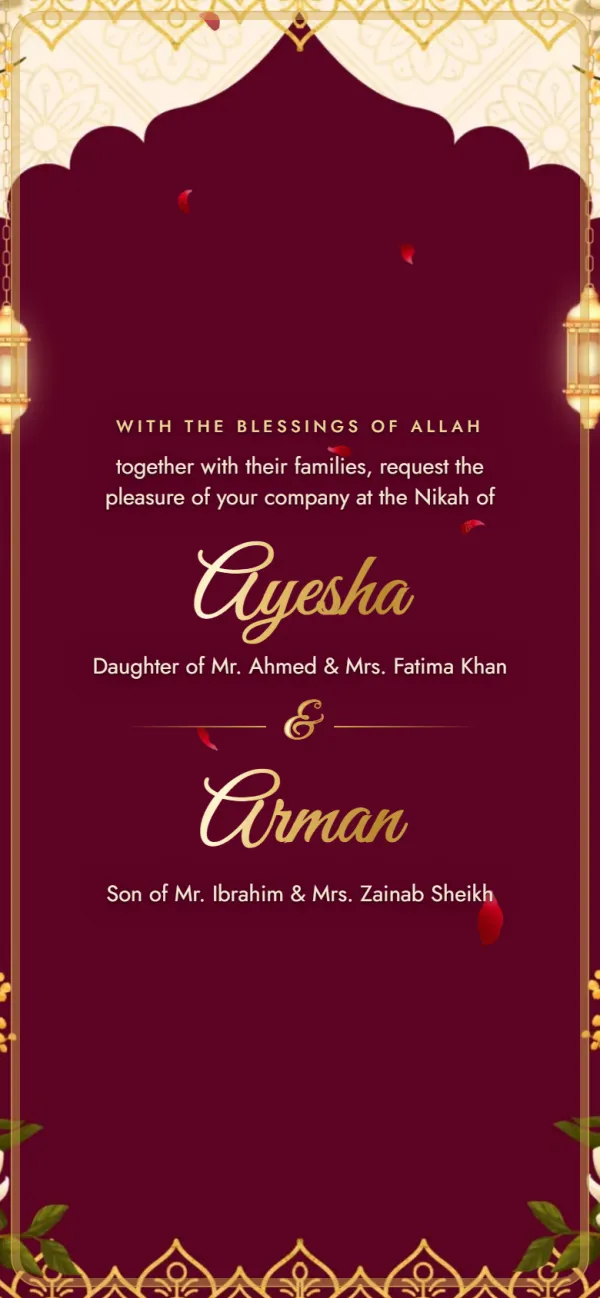
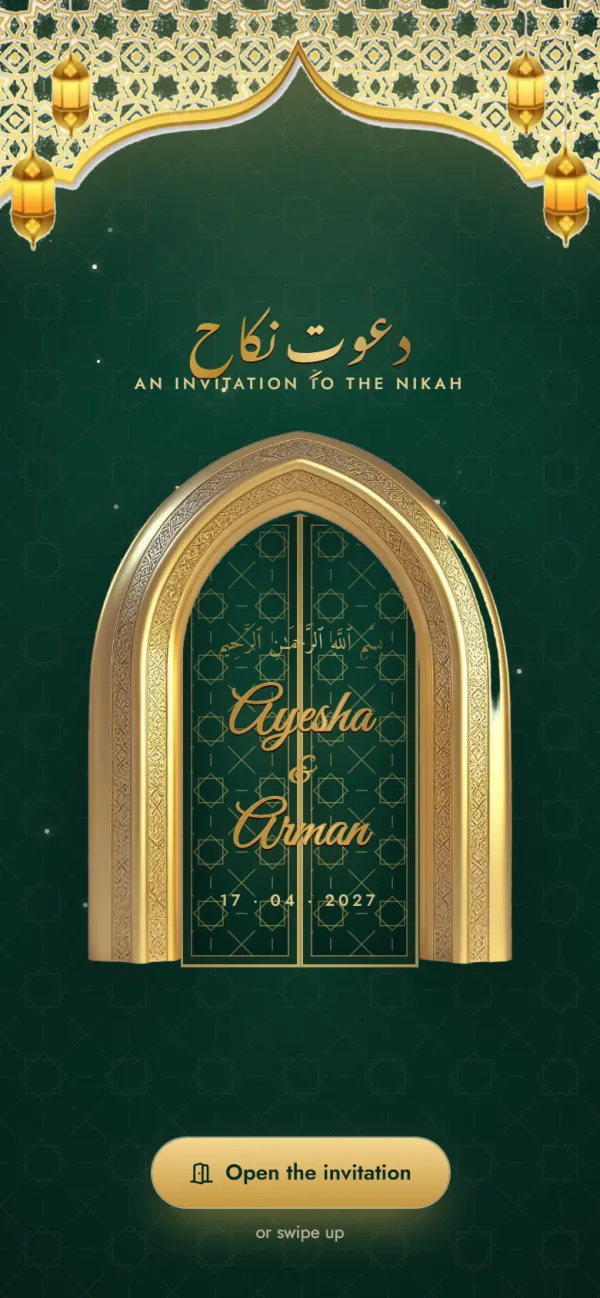
Carved doors open on a night of lanterns, with the Mehndi, Nikah and Walima ready to fill in.
Functions included
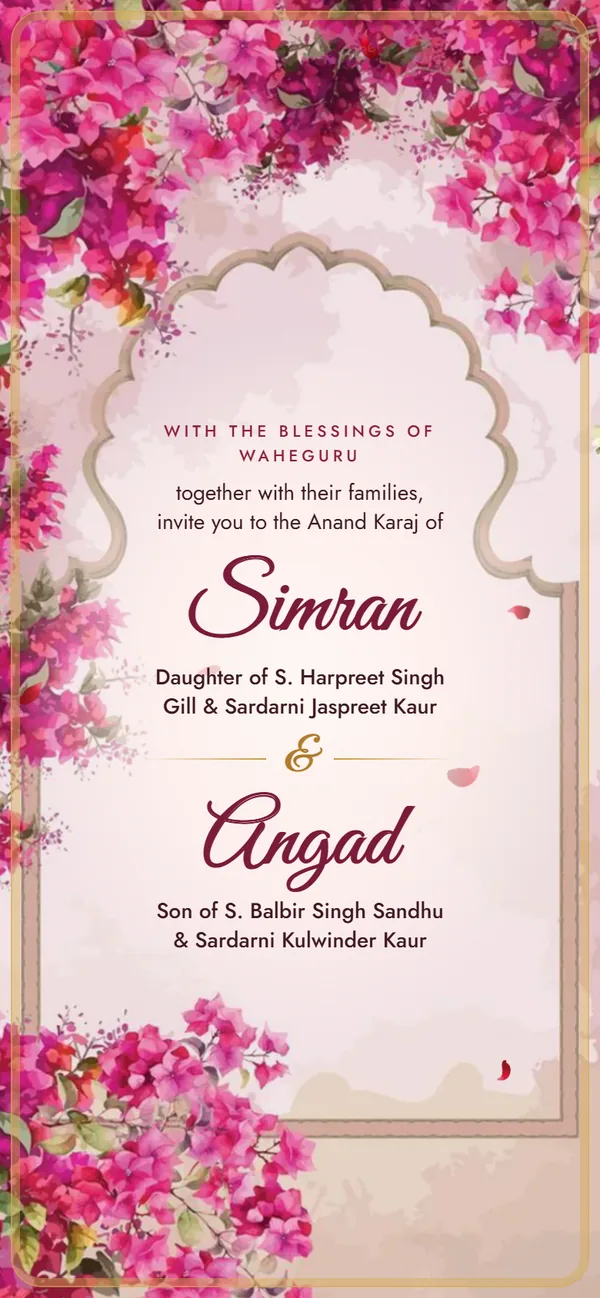
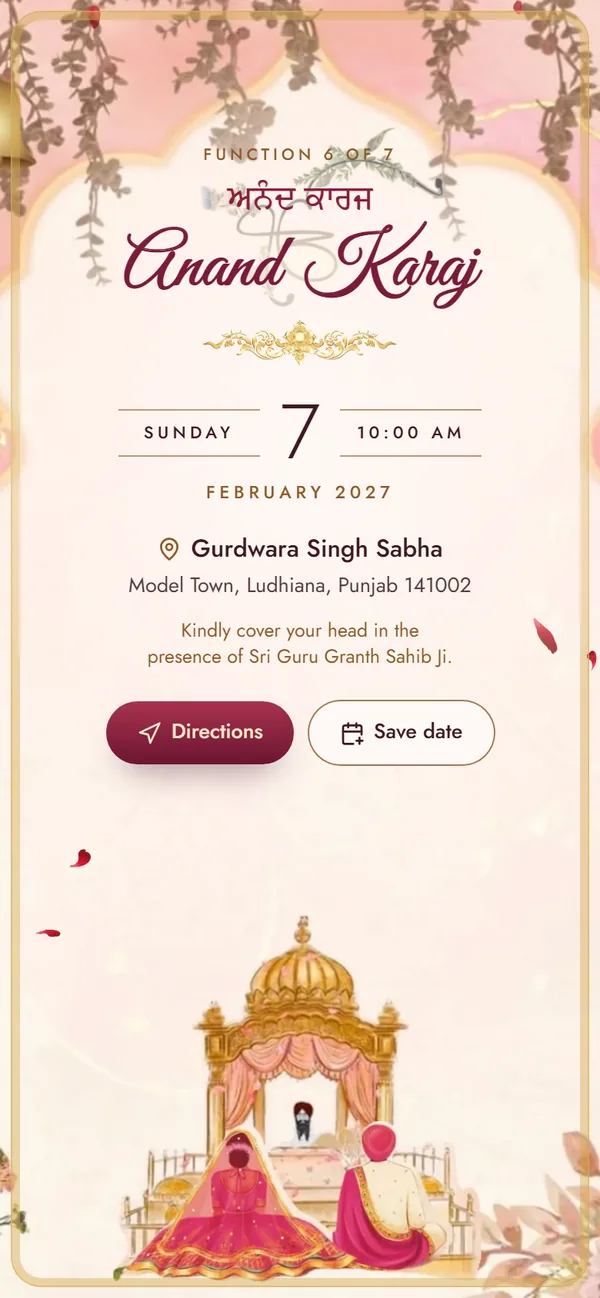
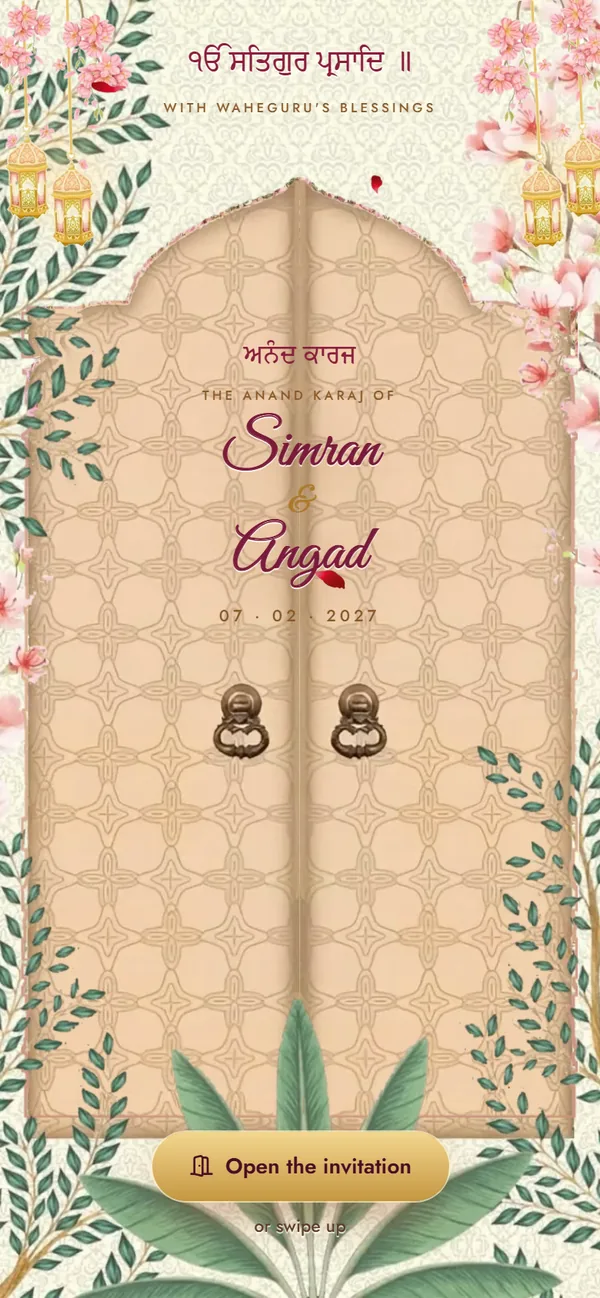
Carved doors swing open on the Palki Sahib: blossoms and gold, the four Laavan, and every function from Path to Reception.
Functions included
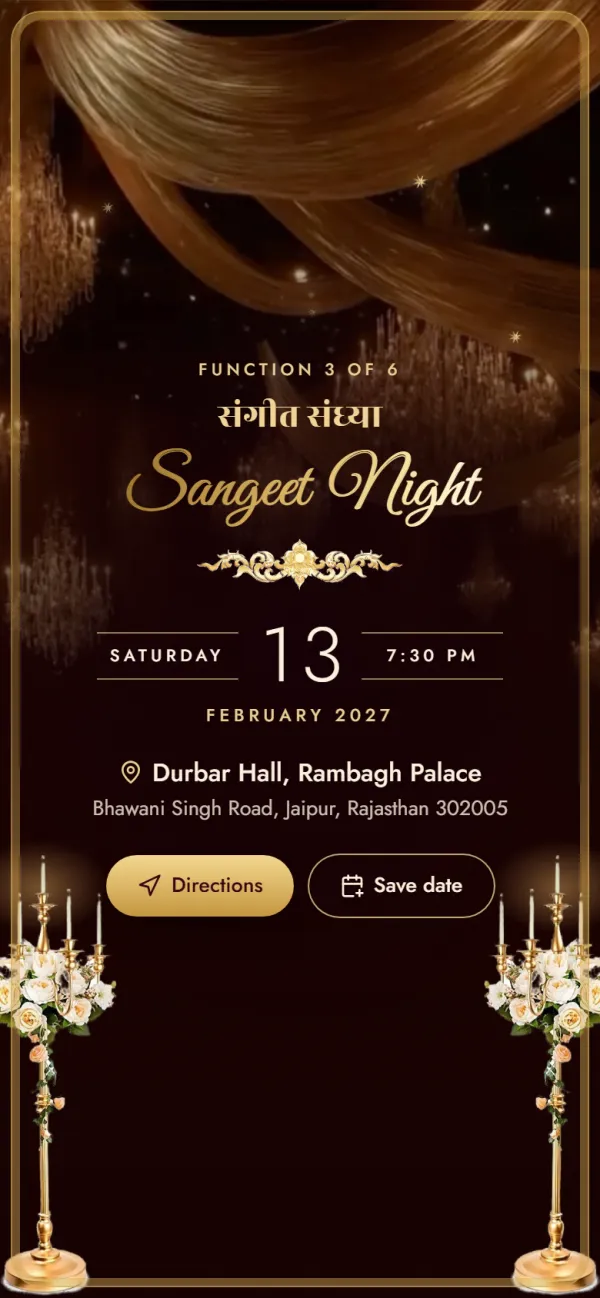
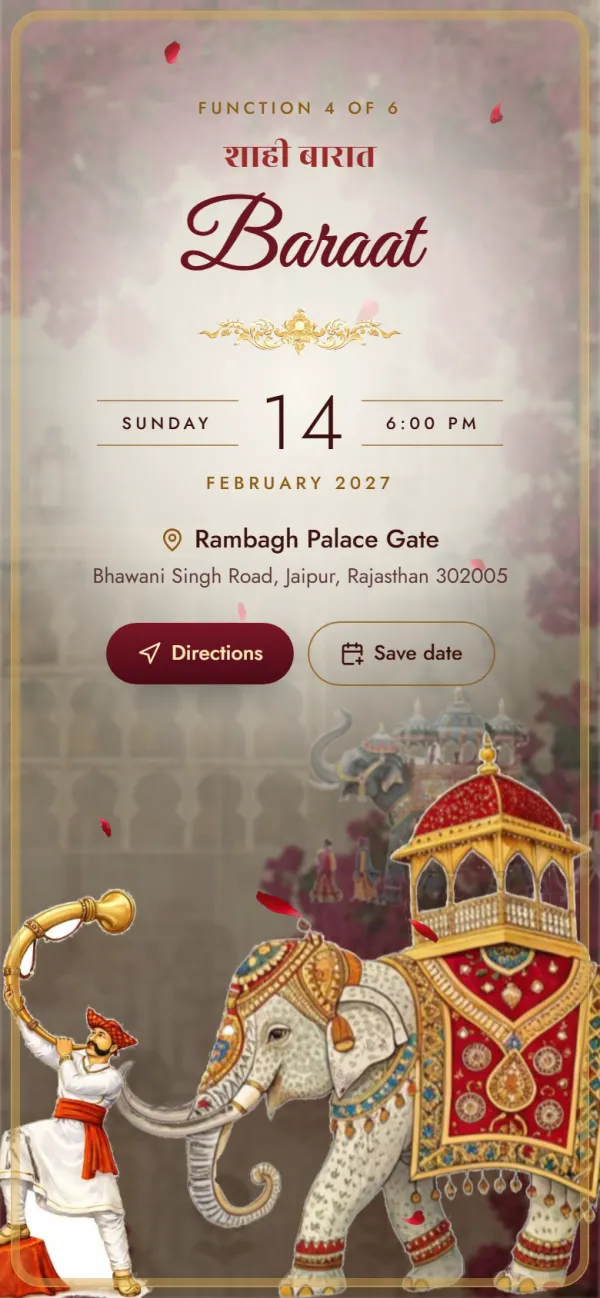

A palace invitation: a sealed letter, velvet curtains and a baraat on an elephant.
Functions included
Maps links, live location and what guests see.
For each function, type the venue name and address, and paste the venue's Google Maps link (in Google Maps: Share → Copy link). Guests then see a directions button on that function that opens the exact spot in Google Maps.
No. The invitation stores each venue's fixed location. When guests tap it, Google Maps navigates them from wherever they are. WhatsApp's live location is a different thing — it shares where a person is right now.
Just type the address. The button then reads “Search on Google Maps” and searches that address. A pasted link is more precise, especially for farmhouses and large venues.
Yes. Every function has its own venue name, address and Maps link, and an “at home” switch for functions at your house.
Yes. The button opens a Google Maps link, which opens in the Google Maps app if it's installed or in the browser if it isn't.
It's included in every invitation at no extra cost. Designing and previewing are free; the only payment is the one-time ₹499 for your shareable link, whichever features you use.
Paste a pin for each venue and let Google Maps do the guiding, on every phone. Try it free in the preview.
Free to try
₹499 only when you share